Color
range and focus area both are the important elements that every photo editor
should use carefully while manipulating or altering any photograph using Adobe
Photoshop. If you don’t know how to work with both of these functions then you
really need to read this blog till the end.
Here,
I’m going to start with the introduction of this amazing editing tool.
Photoshop
at a Glance
Adobe Photoshop doesn’t need any introduction
since it is one of the popular editing tools and having a huge fan following
all around the globe.
This application is a way to express your
ideas, imagination and give wings to your creativity.
It rocks not in the arena of designing but in
the sphere of the web too. It is in demand among the UI and UX designers for
designing the presentative web layouts.
For photographers, it is like profession saver and
there is no application which can suppress it in photo editing. It is I can say
the “King of Image Editing”.
There numerous advantages of using and learning
Photoshop.
By
joining any certificate Photoshop course one can become its master. Photoshop
training course allows you to challenge yourself in
doing practical, layout and designing, using the color scheme and typography fonts
from a different perspective.
I
am also most definitely looking forward to learning new things and growing
along the way.
Explore Photoshop in a good way –
read all the latest Photoshop’s blogs.
How to use Color Range in
Photoshop
Go to Select Menu option, and then select Color Range.
How to use the Color Range Tool?
Open the new file, Add a layer,
Import photo image file, Select-Object.
Selecting Specific Colors
Select
Menu Bar, Color Rage

Color Range dialogue box appear
- select sample colors

Skin Tones

Detect
Faces & Localized Color Clusters
The Fuzziness Slider
The Fuzziness slider
is used to adjust the fall-off beyond the selected color boundaries.
The Eyedropper Tools

The eyedropper tool to select
original color (Press Shift key) and to subtracted ( Press Alt key)
Reset
Press (Alt Key) Reset to clear Color Range and
start over.
Loading and Saving
Selection And Image Views

How To Use The Color
Range Tool (Example)
- H/S (Hue Saturation) Layer
Mask
- Opacity - 50%
- Hue Saturation Adjustment
layer - select/modify / expand and add value 2-3 pixels.

-Use brush tool with low opacity
(30%) - paint on the layer mask

- Go to Select Menu - Color
Range - Value Original one
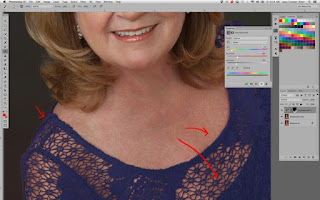
- Final Output
- Ok
How to use Photoshop Focus
Area?
Open photo image,
choose Select > Focus Area.
Use the brush controls to manually add ( ) or remove (
 ) areas from the selection.
Add areas to the selection
manually. Advanced
- Image Noise Level slider
How to use Photoshop Focus
Area. (Example)
Step 1. First
Step Import Photo image
Step 2 - Go to Select Menu Tool> Focus Area.
Step 3 - Check In-Focus Range and Image Noise Level
Step 4 - In-Focus Range slider to 2.05.
Step 5 - Focus Area Add Tool press (E) key button to remove selection areas and the Left ([) and Right (])
Bracket keys.
Step 6 - Press the Refine Edge and Focus Area box
Checked the Smart Radius set the
radius to 2.3 px. The Smooth to 6 and Feather to 0.5
Step 7 - OK button
Other Image Edits
Step 8 - Layer >
Duplicate Layer - Add Layer Mask .
Step 9 - Hue/Saturation
Adjustment layer directly on the Background
layer. Saturation-48, Lightness to 15.
Step 10 - Copy the background layer and go
to Filter > Camera Raw Filter.
Set the Clarity slider to +30 and the Vibrance slider to +27.
Step 11 - Press Okey -
Final Output
The first objective of this blog research was to know the impacts of photoshop
software using various tools, effect, typography, and color scheme, etc.
Author
Introduction: My name is Tenzin Namgyel, friends
call me Tenzin. I am doing graphic master plus from ADMEC MultimediaInstitute. This is my first ever Photoshop assignment blog writing. I
would like to thank my sir. Nishu Tomar, he is having sound knowledge of
multimedia, graphics, CAD, and web designing.
He
taught me many things about Photoshop. He also guided me when I found something
difficult. I acquire and learn many things from him. He plays his role as a
good faculty and explained in a good way. Although I may have some background
doing Photoshop, even I have experience in digitally printing.
Hope
my piece of content will help you to understand the concept of color range and focus
area in Adobe Photoshop.


